Home
StardropHost
Your always-on Stardew Valley co-op server, managed entirely from your browser.
One install command and no terminal needed again.
Set it up once, play whenever.
Free, open source, and fully featured.
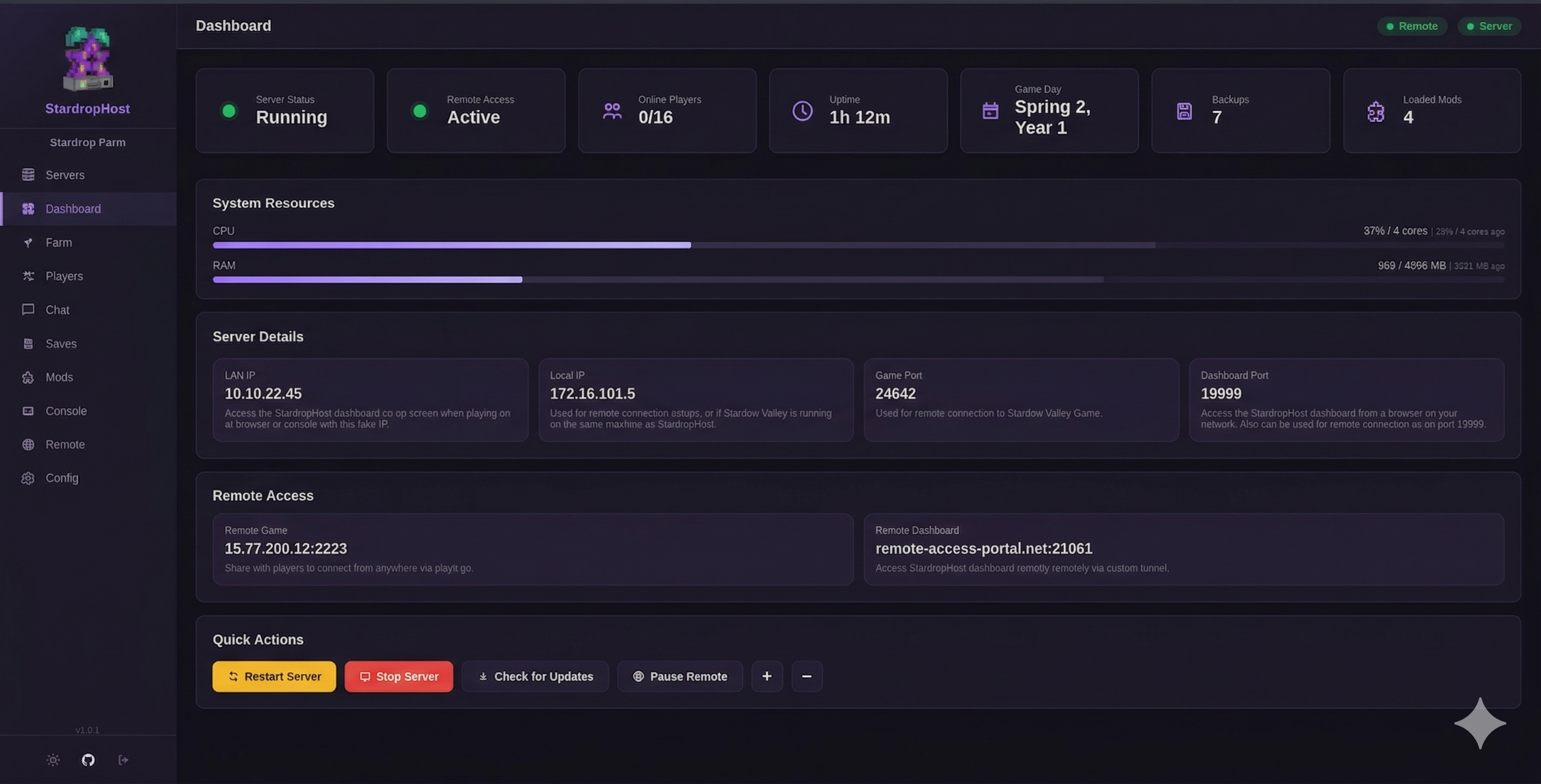
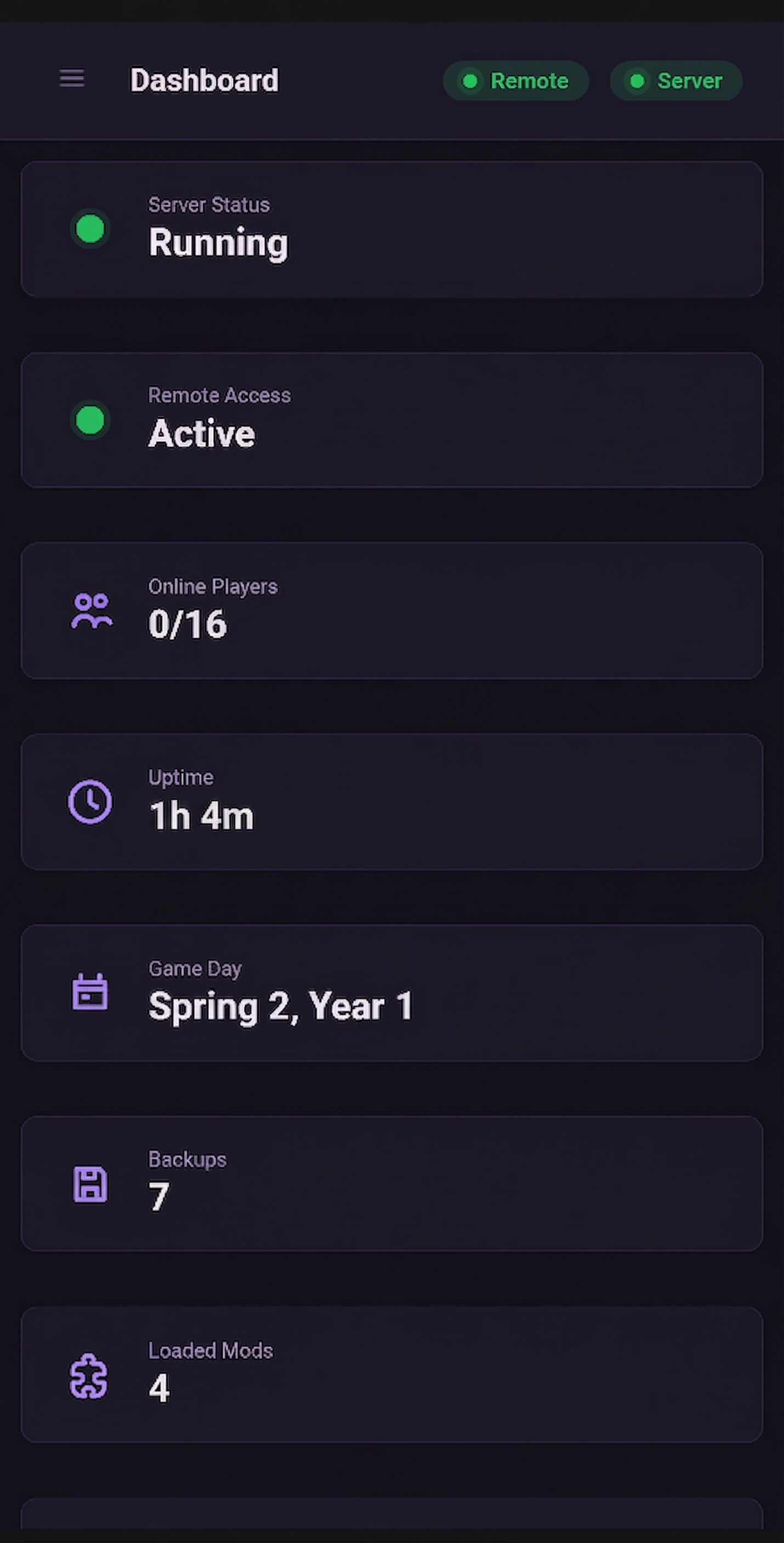
Explore the dashboard live — no download or account required. See exactly what managing your server looks like.
Get StardropHost running on your own machine. One install command, guided setup wizard, and you're online.
Simple Setup
One command run on your server, then follow the setup wizard in a browser on your local network - even from your phone. It walks you through everything: admin password, game files, farm config, and launch. Most servers are up in under 5 minutes.
Steam & GOG Supported
The setup wizard can download Stardew Valley via Steam or GOG. Credentials are never stored - used once to download, then discarded. You can also copy your existing game files across manually.
Live Dashboard
Real-time server status, player count, game day, loaded mods, uptime, and resource usage at a glance. Start, stop, or restart the server from any device on your network — including your phone.
Player Management & Chat
View connected players in real time. Kick, ban, block or allowlist by name or IP. Give items directly to a player's cabin chest, upgrade or move their cabin, and send private messages — all without being in-game.
Commands & Control
Water crops, grow trees, set the time or season, freeze time, complete Community Center bundles, upgrade the farmhouse, clear debris — all from dedicated buttons in the dashboard. No console commands required.
Save Management & Mod Support
Upload existing saves to migrate from a local game. Download your active save any time. Auto-backups run every 24 hours and before every stop or update. Upload and manage SMAPI mods through the panel — any multiplayer-compatible mod works here.
Remote Access & Multi-Instance
Install and run entirely from a single browser tab. Connect a tunnel to share your game and access the dashboard from anywhere - no port forwarding required. Run multiple independent server instances, each with their own save, mods, and settings.
Built on Docker & SMAPI
StardropHost runs completely in Docker using a Linux runtime with the SMAPI modding platform. It provides persistent volumes for saves and configuration, ensuring you never lose data - even across restarts and updates.
Coming Soon
- Mod ManagerAllow or block mods on the server, enforce required mods for clients, and manage host-side vs client-side mod compatibility.
- Discord Bot IntegrationShare your game chat, server status, and in-game events directly with a Discord bot in your community server.
- Lobbies & Advanced Player ManagementPassword protected servers, invite-only lobbies, and deeper per-player permission controls.
- Player DashboardA dashboard your players can log into to track their own game progress, stats, farm screenshots, and more.
All of these and more are currently in the works — releases coming very soon.
Have a feature request? Join the community on Discord and let us know.
Setup Guides
Everything you need to get your server running. Follow in order for a smooth setup.
1. Pre-requisites & System Requirements
Hardware requirements:
- Minimum: 2 GB RAM, 2 CPU core, 4 GB free storage
Actual RAM and CPU usage depends on the number of players online and the amount and type of mods uploaded to the server.
Supported environments:
- Linux (Recommended) — Ubuntu 22.04/24.04 or Debian 12 on bare metal or a VM
- Proxmox — Deploy as a dedicated VM (recommended for home servers)
- TrueNAS SCALE — Use the Apps section with a custom Docker Compose
- Windows / macOS — Supported for testing only; not recommended for 24/7 hosting
Virtual Machine (recommended): For home servers running Proxmox or similar, spin up a dedicated Debian/Ubuntu VM before installing. This keeps StardropHost isolated and easy to snapshot or wipe.
You need a copy of Stardew Valley. The setup wizard can download it via Steam or GOG, or you can copy your existing game files across manually.
2. Installation
Option A — One-command install (recommended):
- Open a terminal on your Linux server or VM.
- Run the install command from the Download page.
- The script handles everything — dependencies, Docker, the repo, directories, and starting the containers.
- Once done, the installer will print the panel URL:
http://your-server-ip:18642
Option B — Manual install:
- Clone the GitHub repository:
git clone https://github.com/Tomomoto10/StardropHost - Change into the directory:
cd StardropHost - Run
./install.shto set up dependencies and start the containers. - Navigate to
http://your-server-ip:18642to access the panel.
3. First-Run Setup Wizard
On first launch, StardropHost walks you through a short setup wizard.
- Open the panel — Navigate to
http://your-server-ip:18642in your browser. The wizard starts automatically. - Set your admin credentials — Choose a secure username and password for the dashboard. These are what you'll use to log in each time.
- Game files — Choose how to provide the game: download via Steam or GOG through the wizard, or skip and copy your existing game files across manually.
- Farm setup — Choose to create a new farm, or upload an existing
.zipsave file. Uploading allows you to migrate a local save to the server. - Start the server — Click Launch. The server will start and you'll land on the Dashboard. Your farm is live!
Players can connect via Co-op → Join LAN Game in Stardew Valley using the LAN IP shown in the Dashboard. For remote play, see the Remote Access guide below.
4. Remote Access with playit.gg
playit.gg creates a free tunnel so friends can join from anywhere - no port forwarding or static IP needed.
Free vs Premium: Free supports UDP (PC & mobile). Premium (~$5/mo) adds TCP which is required for console players (Switch, Xbox, PlayStation) and remote dashboard access.
- Sign up at playit.gg.
- In your playit.gg dashboard, go to Agents → Add Agent and select Docker install. Do not run the provided command. Instead, copy only the
SECRET_KEYvalue shown. - In StardropHost, open the Remote tab. Paste the provided Docker Compose snippet into the config box, replacing the placeholder with your
SECRET_KEY. - Click Apply & Connect. The panel spins up the tunnel agent container.
- Back in playit.gg, go to Tunnels → Add Tunnel. Select UDP, port
24642, and assign it to your server's local IP. - playit.gg will generate a tunnel IP and port. Copy this into the Remote tab in StardropHost - it will display as your game connection address anytime. Share this IP:port with friends to enter in Stardew Valley's co-op join screen.
Remote Dashboard Access
- To access your dashboard remotely, create a second tunnel - select TCP, port
18642(Premium required). playit.gg will generate a domain for your dashboard. You can create a custom domain with a Premium subscription. Use this domain to reach your dashboard from anywhere.
5. Updating & Maintenance
Updating StardropHost panel: Go to the Dashboard and click Check for Updates. If an update is available, click Update Panel — the panel rebuilds itself and reloads automatically.
Updating the game: Game updates are checked automatically as part of the panel update process. After the panel restarts following an update, a game update prompt will appear in the Config tab if a new version is available (Steam and GOG only).
Backups: Backups are taken automatically every 24 hours and before every stop, restart, or update. You can also trigger a manual backup any time from the Saves tab.
Uninstalling: SSH into your server, cd into the StardropHost folder, and run ./uninstall.sh for complete removal of all containers, files, and data.
Server Guides
Coming SoonIn-depth guides for managing and customising your server.
- 📋 How to read, run, and change settings in each dashboard tab
- 🔧 Troubleshooting — SSH access, common errors, and manual fixes
- 🔄 Updating and routine maintenance
Detailed guides coming soon — check back or join the Discord for the latest.
Player Guides
Coming SoonEverything client players need to get the most out of their server experience.
- 🌾 How to connect and get started on a StardropHost server
- 💬 Player commands — e.g.
.move_cabin [type]to reposition and reskin your cabin
Detailed guides coming soon — check back or join the Discord for the latest.
Pre-Requisites
Minimum requirements for a 1–4 player server — more players or heavy mods will need additional RAM and CPU.
- ✅ Dedicated server or always-on device (see below)
- ✅ 2 CPU cores minimum
- ✅ 2 GB+ RAM available
- ✅ 4 GB+ disk space
- ✅ A copy of Stardew Valley (Steam, GOG, or existing game files)
StardropHost is designed to run on a dedicated server or always-on device — not your main PC. Running it on a separate machine means the server stays online 24/7 without tying up your personal computer. A VM on a home server or spare machine is the ideal setup.
It is strongly recommended to run it inside a dedicated Virtual Machine — this keeps it isolated, easy to snapshot, and simple to reset without affecting the host system.
Recommended environments:
- Proxmox VE — VM only
- TrueNAS SCALE — via VM (not Apps/containers)
- Any hypervisor — VirtualBox, VMware, Hyper-V
- Bare metal Linux — Debian or Ubuntu recommended
Other Linux environments should work but have not all been tested. The install script handles Docker and all other dependencies automatically — no manual setup required.
Download & Install
Run the command below on your Linux terminal. The install script handles everything and launches the setup wizard automatically.
Once the script finishes, it will print the dashboard URL in the terminal. Copy it and open it in a browser on any device connected to the same local network to complete the setup wizard.
After Installing
If you didn't catch the URL when the install finished, you can retrieve it by running:
The dashboard URL may appear further up — scroll up through the logs if you don't see it immediately.
Or go directly to the dashboard using your server's local IP address:
http://192.168.1.100:18642 — accessible from any device on your local network.
ip a or hostname -I on the server.GitHub
Source code, issue tracking, and feature requests. Please use the appropriate labels when submitting issues.
View SourceDiscord
Join our community to get help, discuss features, and connect with other server hosts.
Join Community